Instructions
Installing Lukukupla
Installing Lukukupla on mobile platforms is done through the device app store (Google Play Store or Apple App Store).
Installing on PCs is done by downloading an installer or compressed archive from Downloads-page. Installation starts by running the installer and following the installer prompts. Compressed archive can be extracted to a location of choice. After that the game starts by running Lukukupla.exe from the install folder.
Updates are automated on mobile platforms. On PCs game updates must be done manually by downloading the latest version and installing/extracting it over the previous game install.
Game related concepts
Concept | Explanation |
|---|---|
User | Person that has a Lukukupla user account, usually an adult. User account can have several player characters. |
User account / Lukukupla-account | Email address used when registering and logging in to the game. |
Player | Person that plays the game using a player avatar / character, usually a child. |
Player avatar / player character / player profile | Avatar created in game that is used by the player to play the game. Game progression is saved per player avatar. Player character can be active or acrhived/removed. |
... | ... |
Using Lukukupla
Registering a user account and logging into the game
The game starts from the login screen. If you do not have Lukukupla-account, you can register as a user. In order to register you need an email-address and a safe password of your own choosing. Before registering you need to accept the terms of service. Registration must be completed by validating the user account email. For this purpose an activation link is mailed to your email-address.
After logging in you'll get to the player selection screen. Choose "Pysy kirjautuneena" ("Stay logged in") if you are using a private device and you don't want to provide your login details on every startup.
You can also play without logging in in offline-mode (no Internet-connection required), locally on the device ("Pelaa kirjautumatta" / "Play without logging in"). In this case the game progress is saved only to the current device. Logging in makes it possible to play on several devices (e.g. a phone and a tablet) as the game data is synchronized across devices. Player avatars created in offline-mode can be later transferred to a user account if needed.
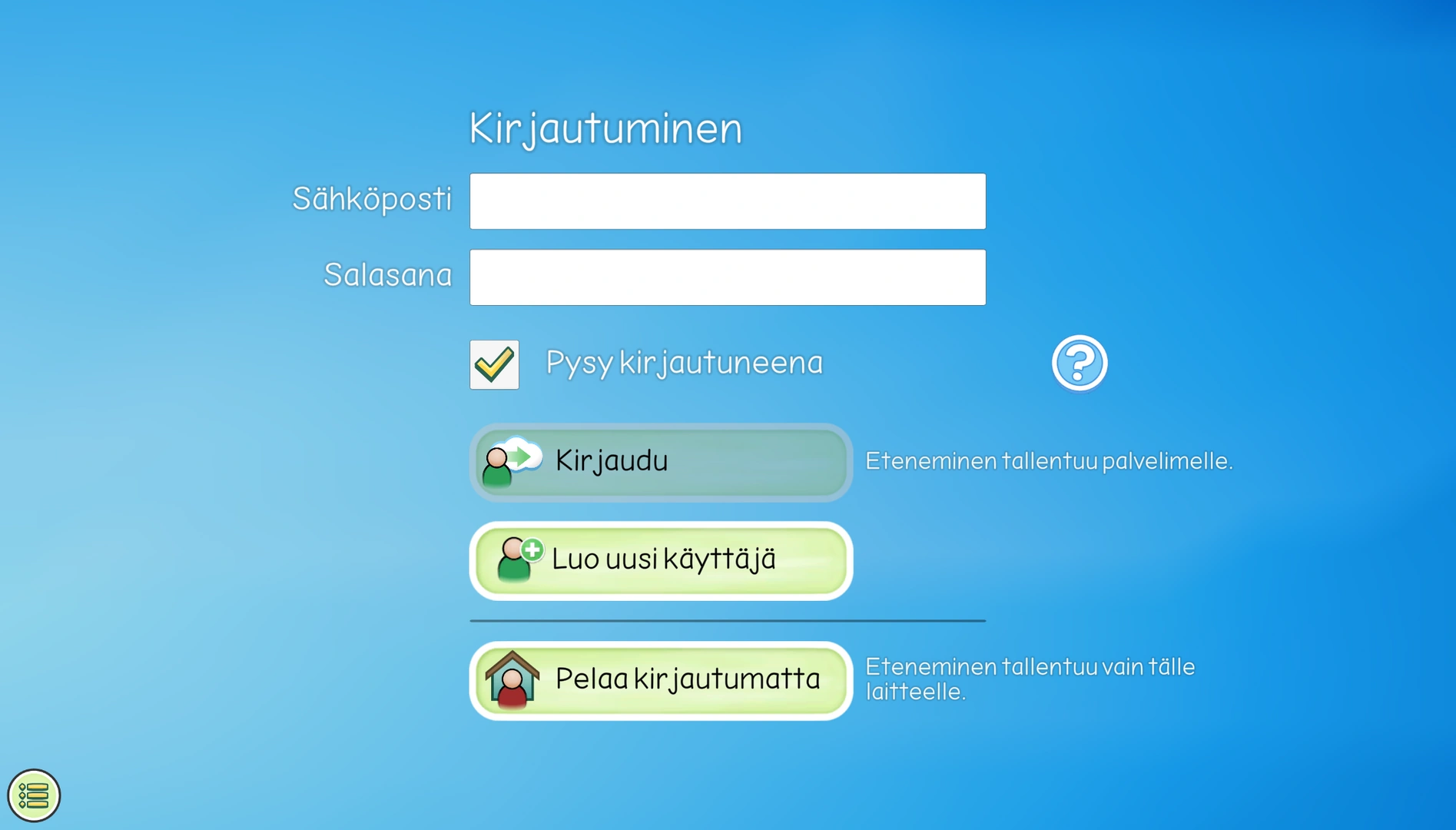
Login screen
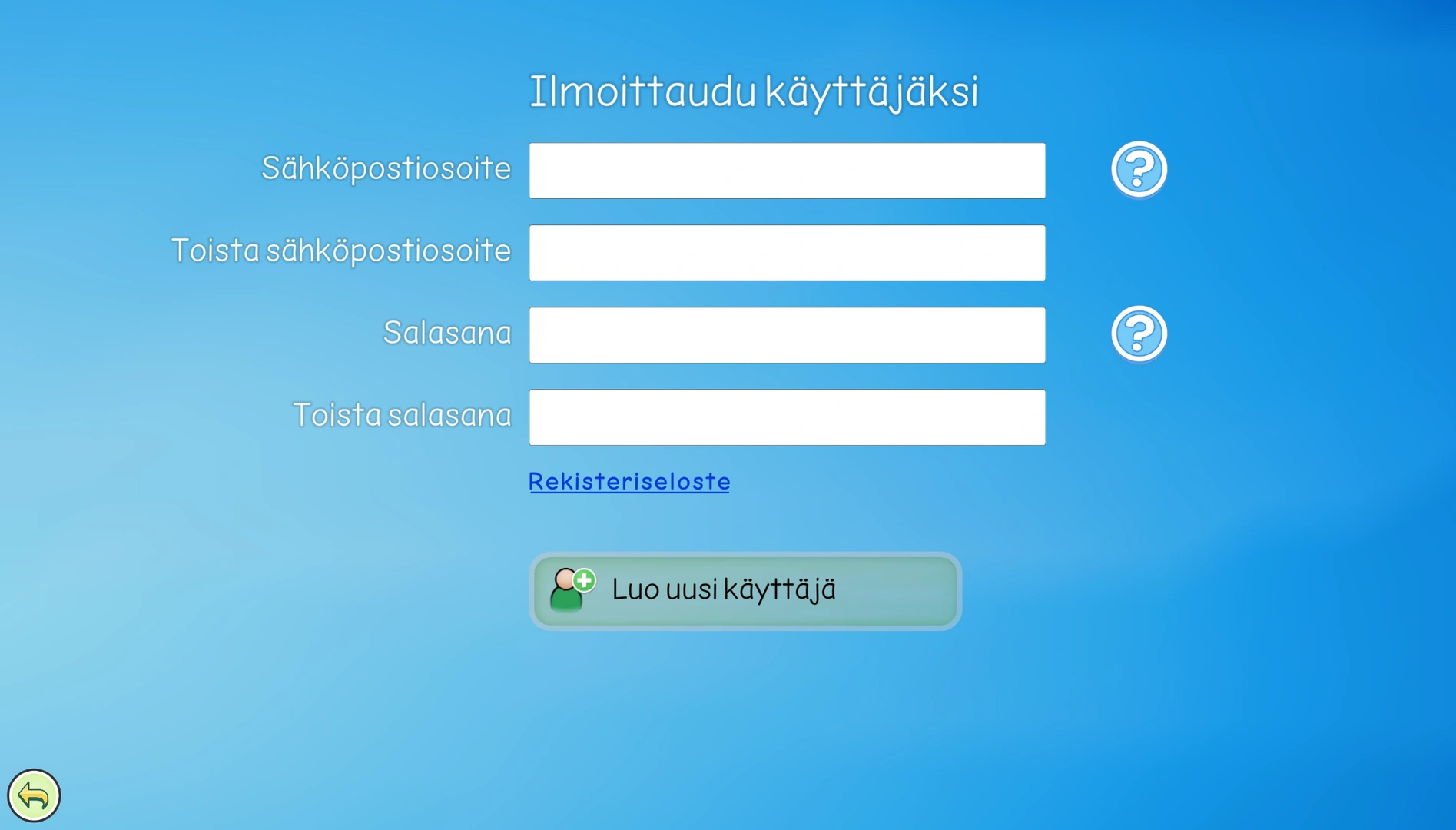
Registering a new user account
Creating a player avatar and selecting the player profile
At first startup you need to create a player avatar / character by choosing "Luo pelaaja" / "Create player". After naming the avatar you can set an optional passcode. Player can customize their avatar appearance at the start of the first play session. Prior that, only the character silhouette is visible in the player selection screen.
Player selection screen shows all the player avatars that are under the current user account (or locally on the device when in offline-mode). Click on an avatar to start playing. It is important that the child always uses their own player avatar when playing.
When there are several player avatars, the search bar ("Etsi pelaajaa...") appears at the top of the screen. On the upper right corner is the player group selection button if player groups are configured in Player management screen.
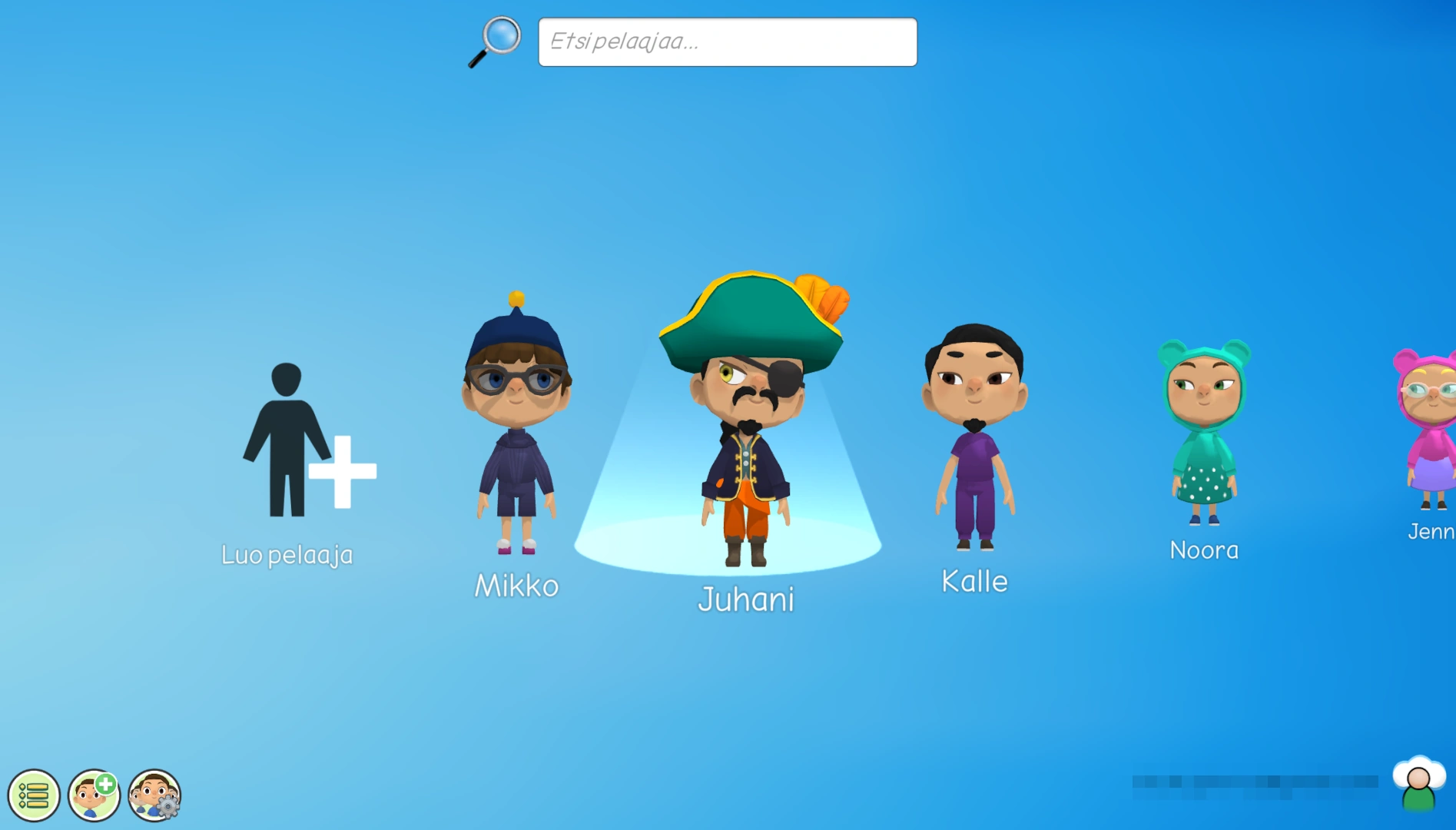
Player selection screen. Bottom right corner shows the currently logged in user account (redacted in the picture).
Gameplay audio
It is recommended to use headphones when playing Lukukupla in order to hear the audio prompts and instructions accurately in the learning tasks. Learning task audio is played at full volume of the device running the game, so you need to use device controls (mobile platforms) or operating system controls (computers) to choose a suitable volume level.
In addition to learning tasks, there is also background music and sound effects in the game. To adjust volume, choose the bottom left menu -> Asetukset (Settings) -> Ääni (Sound) -> set the suitable level for music and sound effects.
Player can hear the learning task audio prompt several times by clicking on the repeat-button at the bottom of the screen (speaker icon).
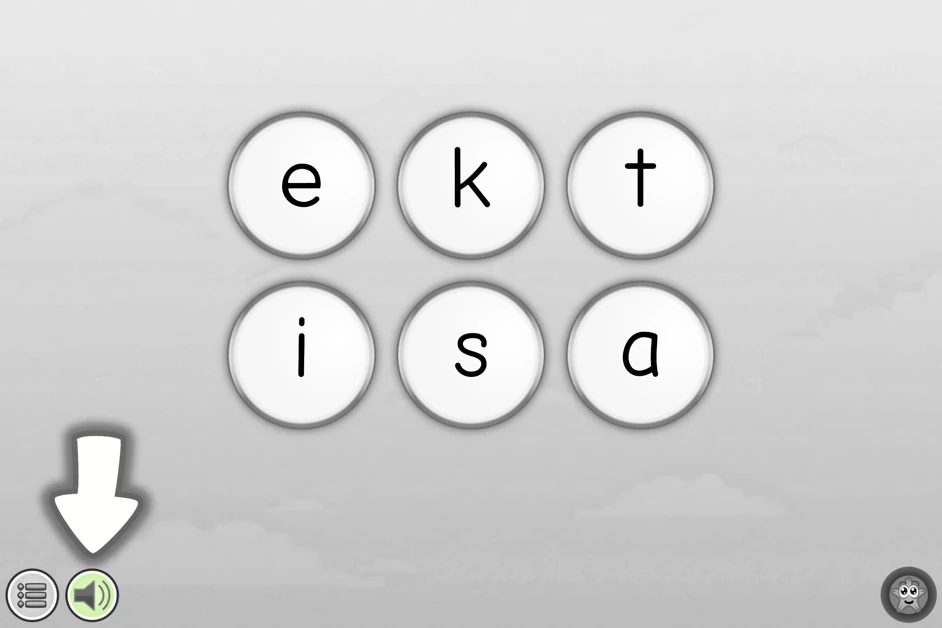
Sound repeat button
Player management and monitoring game progression
In the Player management screen you can monitor player progression in the game and organize player avatars into player groups (e.g. based on classes at school). Player avatars and groups can also be shared to other Lukukupla-users (see the sharing instructions below). Obsolete player avatars can be archived/removed.
By clicking the player card of a player the card expands to display more detailed information. In order to view game progress of several players, select their player cards and click the "Edistyminen" / "Progression" -button at the top.
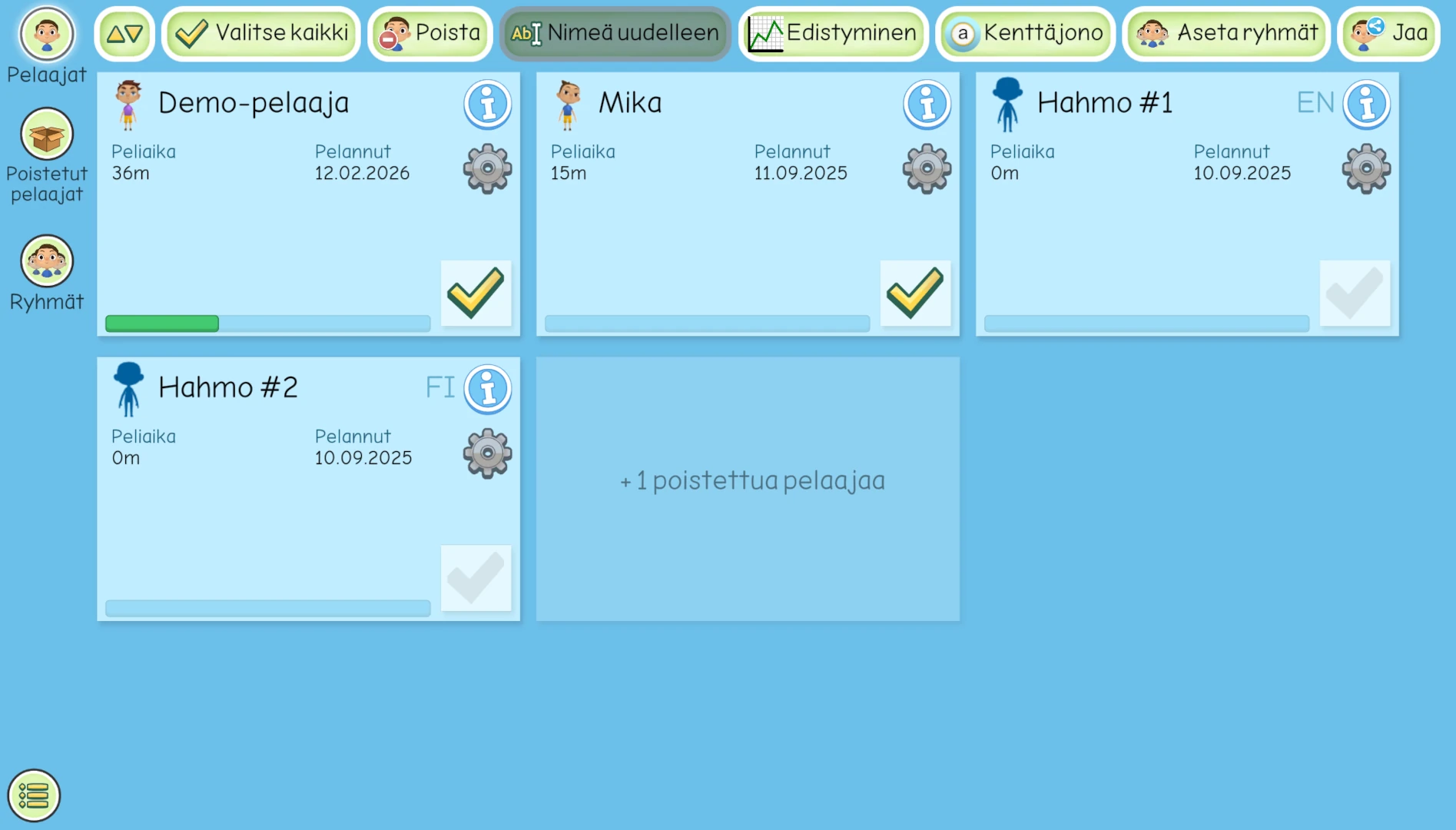
Player management screen
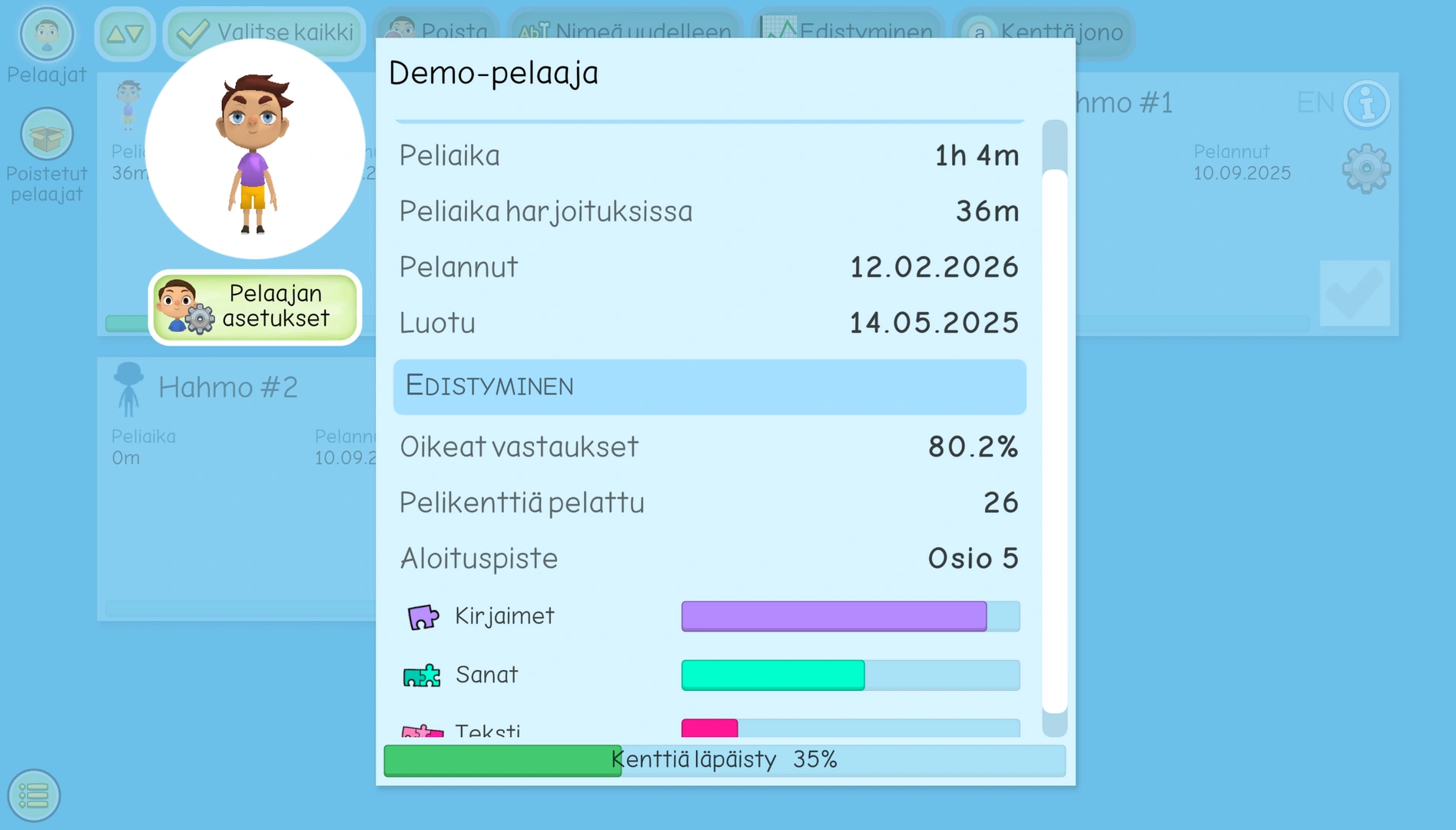
Player card expanded
Sharing players to other users
Logged in users can share player avatars and groups to other users, for example if there is need to play both at school and at home. In this case teacher can share the player to the parent user account. In another example teacher can share their class player avatars (or a class group) to another teacher at the end of semester. When the share recipient has accepted the shared players / groups, the original user (share sender) can remove the players from their account, if needed.
In order to share players, select them in Player management screen and press the "Jaa" / "Share" -button at the top. The share can be made in two ways:
- Share directly to another Lukukupla-user account. In this case, enter the recipient email address. To ensure smooth transfer, the recipient should already have registered their user account in the game.
- Share using a share code ("Jaa käyttäjälle" / "Share to user" -field is left empty). Game generates a share code that can be copied or written down and sent to the recipient (e.g. using email or text message).
In the bottom menu from both Player management screen and Player selection screen you'll find a Jaot / Shares -button. In the Jaot / Shares -menu you can inspect your own shares and respond to pending share requests from other users. If there are pending shares to your user account, you can find them in "Odottavat jaot" / "Pending shares". If a share code was used, you can input it into "Syötä jakokoodi" / "Input share code". Before accepting or denying a share the game displays who sent the share and what players / player groups are included in the share.
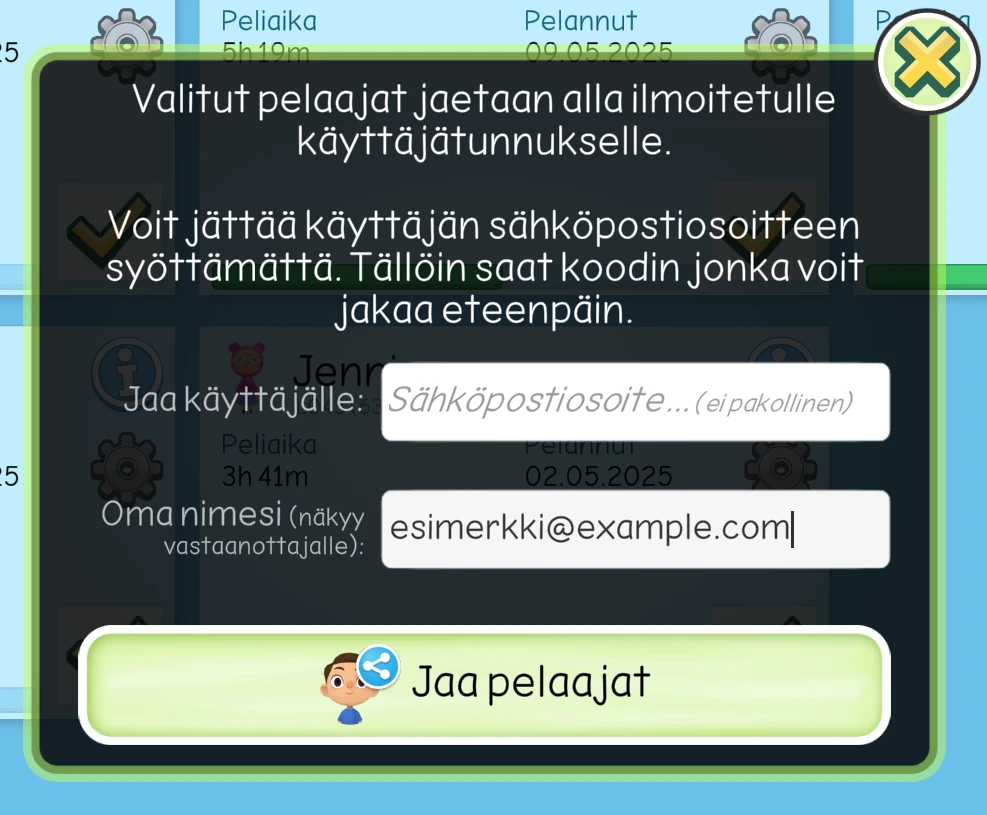
Sharing players
Deleting your Lukukupla-account
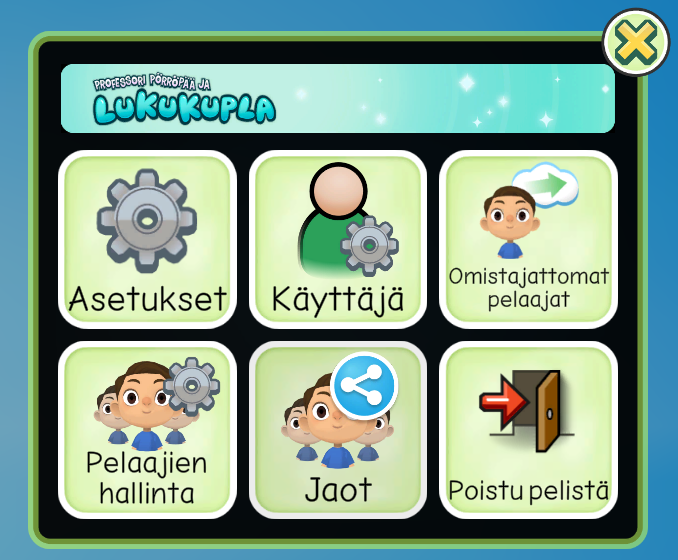
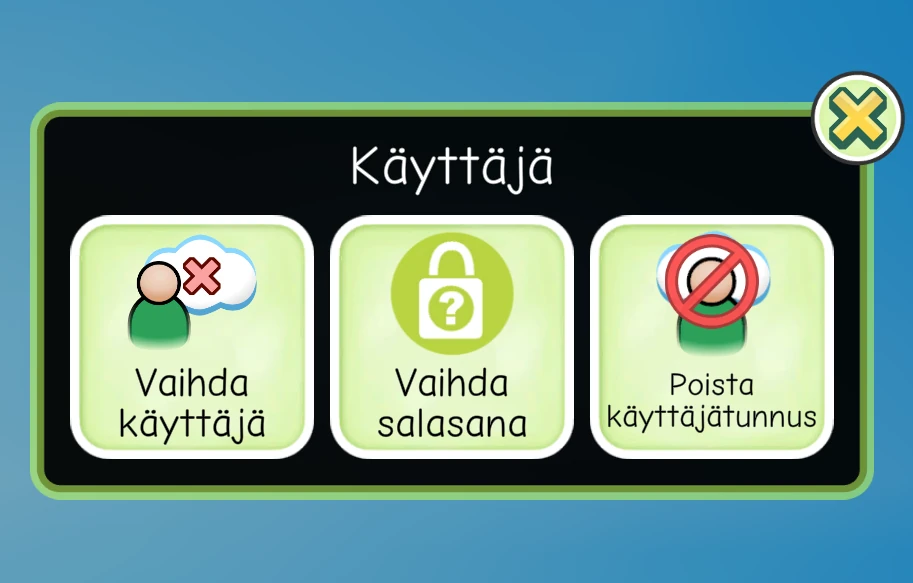
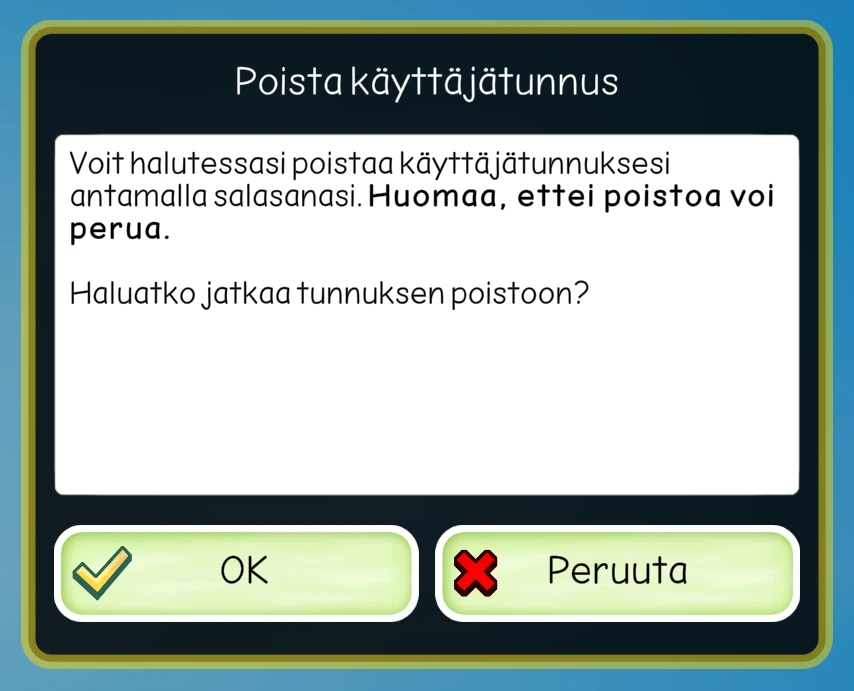
You can delete your Lukukupla -user account through the game. First log in and then in Player selection screen bottom left corner menu -> Käyttäjä (User) -> Poista käyttäjätunnus (Delete user account).
Important: after deleting the user account, the account cannot be restored. Removal of the account also removes the rights to the player avatars that were under the account, unless those players were shared earlier to another user(s).